Outlook Email Template Creation: Creating Efficient Email Templates in Outlook
- Steven Paniccia
- May 22
- 4 min read
Email communication is a vital part of daily business and personal interactions. When you send similar messages repeatedly, creating email templates can save you a lot of time and effort. Outlook, one of the most popular email clients, offers powerful tools to help you streamline your email workflow. In this post, I’ll walk you through practical steps and tips for creating efficient email templates in Outlook. Whether you’re managing customer inquiries, sending regular updates, or just want to speed up your email routine, this guide will help you get started.
Why Outlook Email Template Creation Matters
Creating email templates in Outlook is a smart move for anyone who sends repetitive emails. Instead of typing the same message over and over, you can prepare a template once and reuse it whenever needed. This not only saves time but also ensures consistency in your communication. For small to medium businesses and individual users, this can improve professionalism and reduce errors.
Templates are especially useful for:
Customer support responses
Meeting invitations
Follow-up emails
Sales pitches
Internal announcements
By using templates, you can focus more on the content that matters and less on formatting or rewriting. Plus, Outlook’s tools make it easy to customize templates on the fly, so you can add a personal touch without starting from scratch.
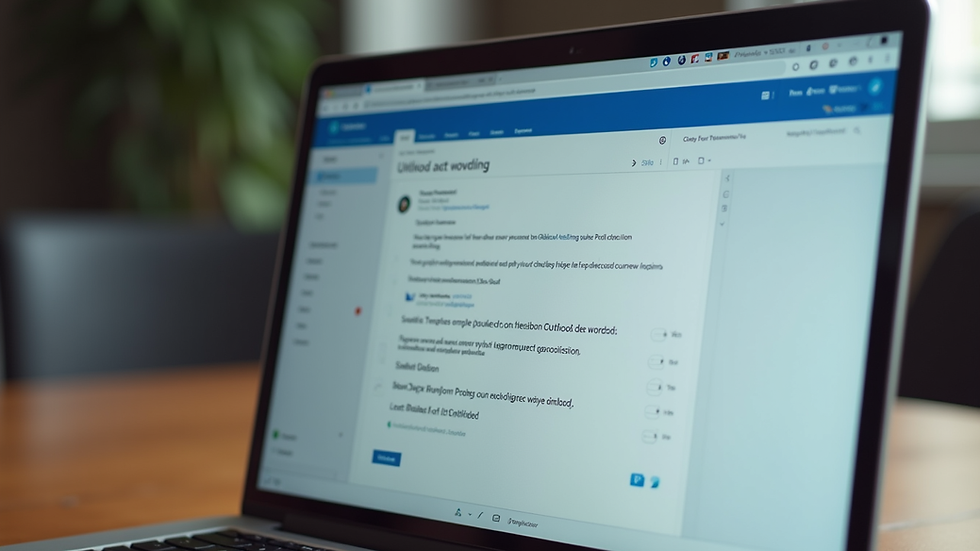
How to Create Outlook Email Templates
Getting started with email templates in Outlook is straightforward. Here’s a step-by-step guide to help you create your first template:
Open Outlook and start a new email
Click on "New Email" to open a blank message window.
Compose your template message
Write the email content you want to reuse. Include the subject, body text, and any formatting or images you want to keep.
Save the email as a template
Click on "File" in the message window.
Select "Save As."
In the "Save as type" dropdown, choose "Outlook Template (*.oft)."
Give your template a clear name and save it in the default folder or a location you can easily find.
Use your template when needed
To open a template, go to "Home" > "New Items" > "More Items" > "Choose Form."
In the "Look In" dropdown, select "User Templates in File System."
Pick your template and click "Open."
Customize the message if necessary, then send.
This method is perfect for emails that don’t change much but need to be sent regularly. If you want to learn more about how to create Outlook email templates, you can check out this detailed guide.
How do I create a quick step email template in Outlook?
Outlook also offers a feature called Quick Steps, which lets you automate repetitive tasks, including sending templated emails. Quick Steps are great for users who want to combine multiple actions into one click.
Here’s how to create a Quick Step email template:
Open Outlook and go to the Home tab
Look for the "Quick Steps" group in the ribbon.
Create a new Quick Step
Click "Create New" to open the Quick Step editor.
Name your Quick Step
Give it a descriptive name like "Send Follow-Up Email."
Choose the action
Select "New Message" as the action.
Set up the template content
Click "Show Options" to add recipients, subject, and text in the message body. You can pre-fill these fields with your template content.
Save the Quick Step
Click "Finish" to save.
Now, whenever you want to send that email, just click your Quick Step, and Outlook will open a new message with your template ready to go. You can still edit the message before sending, which keeps things flexible.
Quick Steps are especially useful if you want to combine sending a templated email with other actions, like moving the original message to a folder or marking it as read.

Tips for Making Your Outlook Email Templates More Effective
Creating a template is just the start. To get the most out of your templates, consider these tips:
Keep it concise: Short, clear messages work best. Avoid unnecessary jargon or filler.
Use placeholders: Insert placeholders like [Name], [Date], or [Project] to remind yourself where to customize the message.
Include a call to action: Make it clear what you want the recipient to do next.
Test your templates: Send test emails to yourself or a colleague to check formatting and links.
Update regularly: Review your templates periodically to keep them relevant and accurate.
Use consistent branding: Add your company logo, signature, and colors to maintain a professional look.
By following these tips, your templates will not only save time but also improve the quality of your communication.
Automating Email Templates with Outlook Add-ins and Features
If you want to take your email template game further, Outlook supports add-ins and automation tools that can help. For example:
Quick Parts: Save frequently used text snippets and insert them into emails with a few clicks.
Rules and Alerts: Automatically respond to certain emails with a template.
Third-party add-ins: Some tools integrate with Outlook to provide advanced template management and analytics.
While these options may require a bit more setup, they can significantly boost your productivity if you send a high volume of emails.
Making Email Templates Work for You
Creating efficient email templates in Outlook is a practical way to simplify your daily communication. By investing a little time upfront, you can save hours later. Whether you use the built-in template feature, Quick Steps, or other automation tools, the key is to keep your templates clear, flexible, and easy to update.
If you want to explore more about how to create outlook email templates, the linked guide above is a great resource to get you started. Remember, the goal is to make your email process smoother and more consistent, so you can focus on what really matters - your work and your relationships.
With these strategies, managing your emails becomes less of a chore and more of a streamlined part of your day. Give it a try, and watch your email efficiency improve!


Comments