How to Create Outlook Email Templates
- Steven Paniccia
- Sep 18, 2023
- 1 min read
Updated: May 28
Emails are a daily routine that we all send day in and day out throughout the workday. As an IT professional, we constantly write the same emails depending on the type of work we do.
Have an email template is a great way to cut down on the time it takes to draft the same email over and over again. A good example of a routine email is a password reset email. If you're in a helpdesk role and have to support end users with password resets to applications, then this is definitely worth a read.
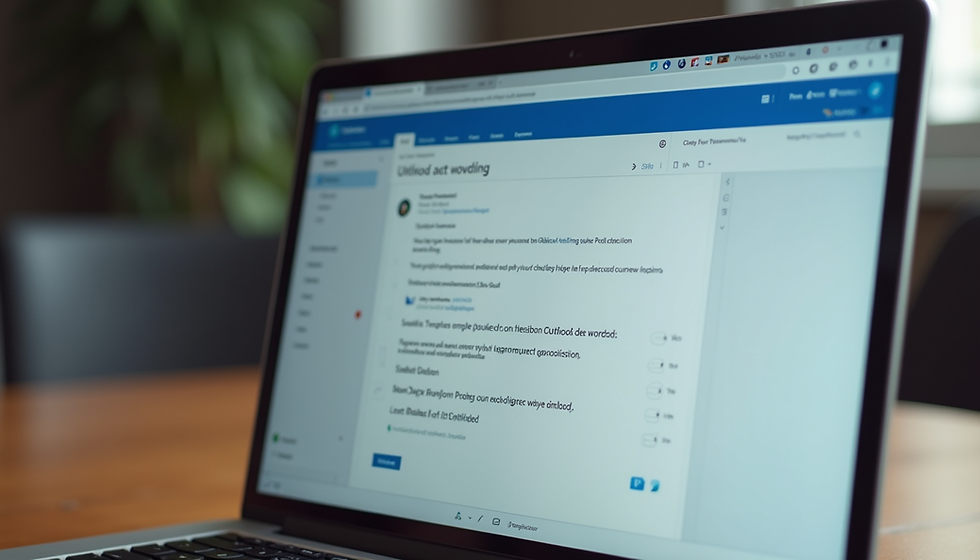
To create an email template in outlook, first open outlook and then draft a new email.

Next, click on the View Templates button

Once you select that button, a side menu will appear in your new email message with some preconfigured defaults courtesy of Microsoft, however you can add some additional templates by clicking on + Template button under the default messages.

You'll now be able to draft an email template that you can send out as often as you need without constantly rewriting the same mundane email over and over again. After you type the desired email. Press the Save button.
The template only applies to the body of the email and does not add a subject line

For a video guide on how to set up an email template, simply click here!


Comments