Creating a Local Windows Profile - Windows 11
Updated: Sep 27
When setting up a new computer, you'll need to complete the initial setup process and complete the out of the box setup. Microsoft Windows now requires a Microsoft account to proceed, but there is a way to bypass this requirement and set up a local account instead. Below, you'll find the steps to create a local Windows account.
How to Install Windows 11 Without a Microsoft Account
Setting up Windows 11 requires an internet connection; however, one simple trick can bypass that requirement to keep the Out of the Box Experience from requiring that connection and disconnecting the internet at the right time in the setup process.
This trick works with both, a custom build pc and a store-bought computer. Let's dive in and set up a local account.
1. Install Windows 11
install Windows 11 and follow the prompts until you get to the "Choose a country or region" screen. From there, you're going to disconnect your computer from the internet then move to the next step.

2. Open up Command Prompt
If you're using a desktop, hold down Shift + F10, or on some laptops you might have to hold the FN(function key) Shift + F10. this will bring up the command prompt window.

3. Type the Command
The command, "OOBE\BYPASSNRO" to disable the internet requirement by windows 11 and then hit the Enter key. This will force your computer to reboot (so don't worry!).

4. Complete the Installation
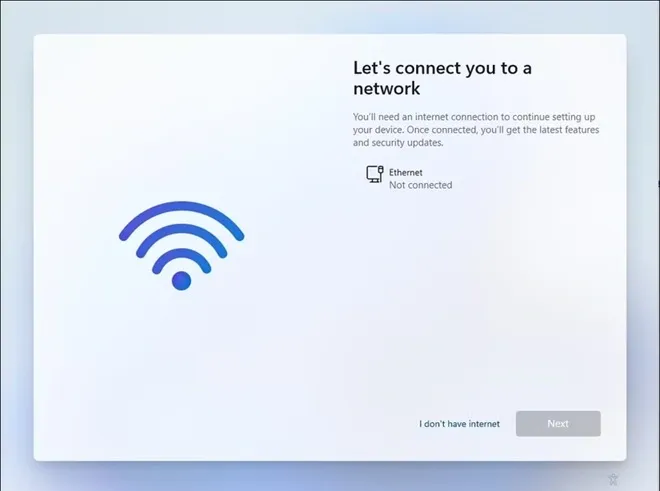
Once the computer reboots, you'll be prompted to choose your region again, just follow the setup until you come to the "Let's connect you to a network" screen.
5. I don't have Internet
When you get to the "Let's connect you to a network screen" you'll want to select, I don't have internet. Make sure you take out the ethernet cord (if you're using a pc/laptop and you're not connected to the Wi-Fi either)
6. Continue with Limited setup
You'll be prompted one last time to connect to the internet to complete the setup or to continue with limited setup. Select, continue with limited setup.

7. Finish the Setup Process
From here, you'll be prompted to name your device and create a user account and setup a password for that account. All you'll have to do is continue the setup process and you'll be good to go!


Comments